 Contact Us
 Help Center
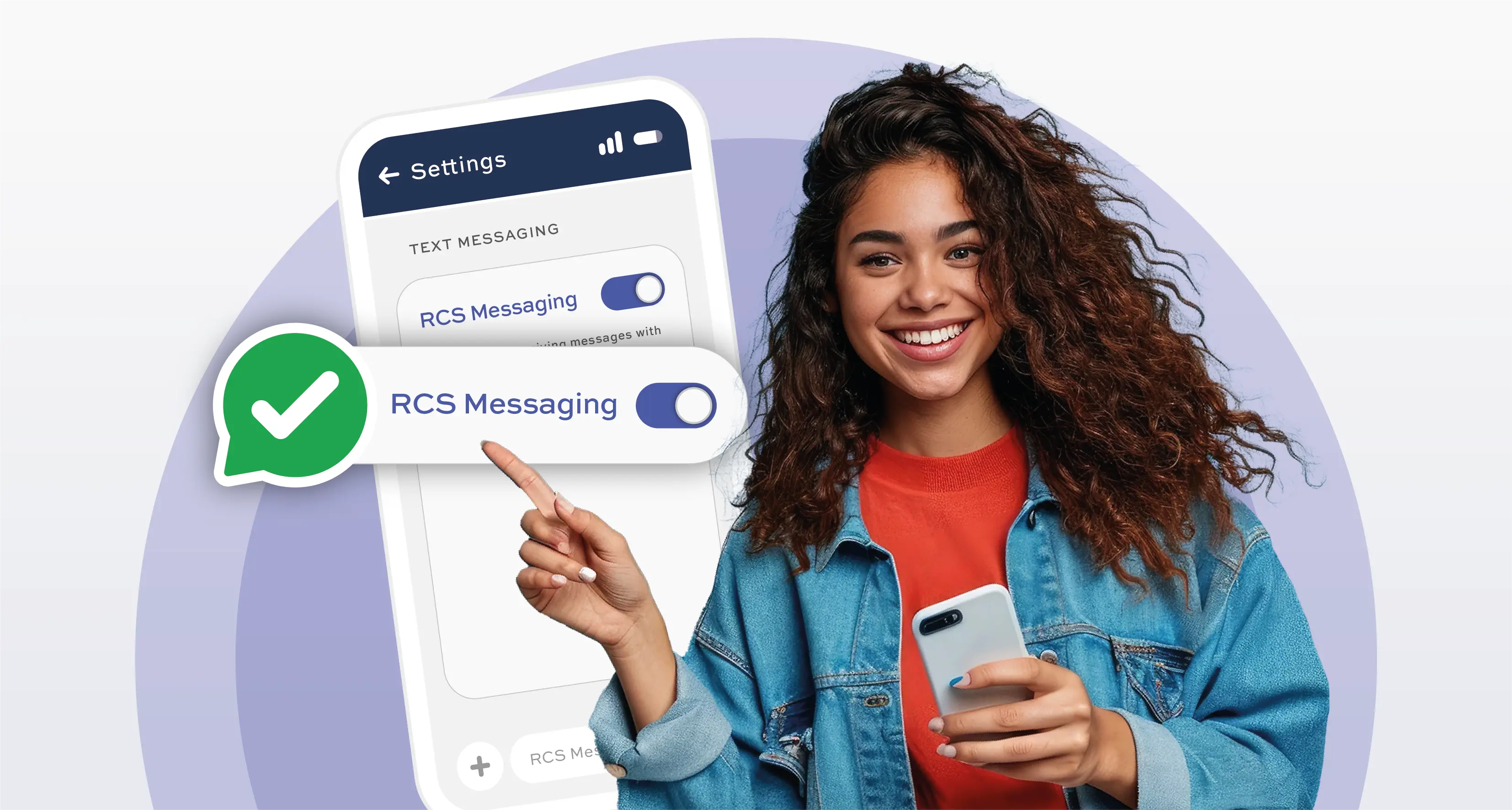
RCS business messaging is different from SMS; it allows for more engaging and secure conversations. To receive an RCS business message, you’ll need to ensure that RCS is enabled on your mobile phone. Once enabled, you can send and receive RCS messages.
Let’s walk you through how to enable RCS messaging on your mobile device so you can fully take advantage of this mobile communication channel.
Steps to Enable RCS (Rich Communication Services) on Your Android Device Using Google Messages:
- Update Google Messages: Make sure you have the latest version of the Google Messages app from the Google Play Store.
- Open the App: Launch the Google Messages app.
- Access Settings: Tap the three-dot menu or the settings gear icon.
- Enable Chat Features: Look for “Chat features” or “RCS settings” and toggle it on.
- Verify Your Number: If prompted, confirm your phone number to activate RCS.
- Wait for Activation: Give it a moment for RCS to activate; ensure you have a stable internet connection.
- Confirmation: Once activated, you’ll see a message confirming that RCS is active, giving you access to enhanced messaging features.
Steps to Enable RCS (Rich Communication Services) on a Huawei Device:
- Update Your Device: Ensure your Huawei device and the Messaging app are updated to the latest version.
- Open the Messaging App: Launch the default Messaging app on your device.
- Access Settings: Tap the three-dot menu or the settings gear icon in the app.
- Find RCS Settings: Look for options like “Chat features,” “Advanced messaging,” or “RCS settings.”
- Enable RCS: Toggle the switch to turn on RCS or Chat Features.
- Verify Your Number: Follow any prompts to confirm your phone number if required.
- Wait for Activation: Give it some time for RCS to activate.
- Confirmation: You’ll see a message confirming that RCS is active.
How to Enable RCS Messaging on Your iPhone:
First things first: RCS messaging is only available on iOS 18 or later, and you will need to check if your mobile network operator in your country supports RCS. Here’s how to do that:
- Open Settings on your iPhone.
- Tap on General.
- Select About.
- Tap on Carrier or Network Provider.
Once you’re in the Carrier / Network Provider section, look for the IMS status. If it says Voice, SMS & RCS, then your carrier supports RCS!
Now, let’s get RCS messaging enabled on your iPhone:
- Go back to Settings.
- Scroll down and tap on Apps.
- Select Messages.
- Find RCS Messaging under Text Messaging.
- Flip the toggle next to RCS Messaging to turn it on.
And that’s it! You’re all set to enjoy RCS messaging on your Android, Huawei or iPhone.

